Edit Area Wayline
Takeoff point
Click on the map to select an appropriate location as a reference takeoff point.
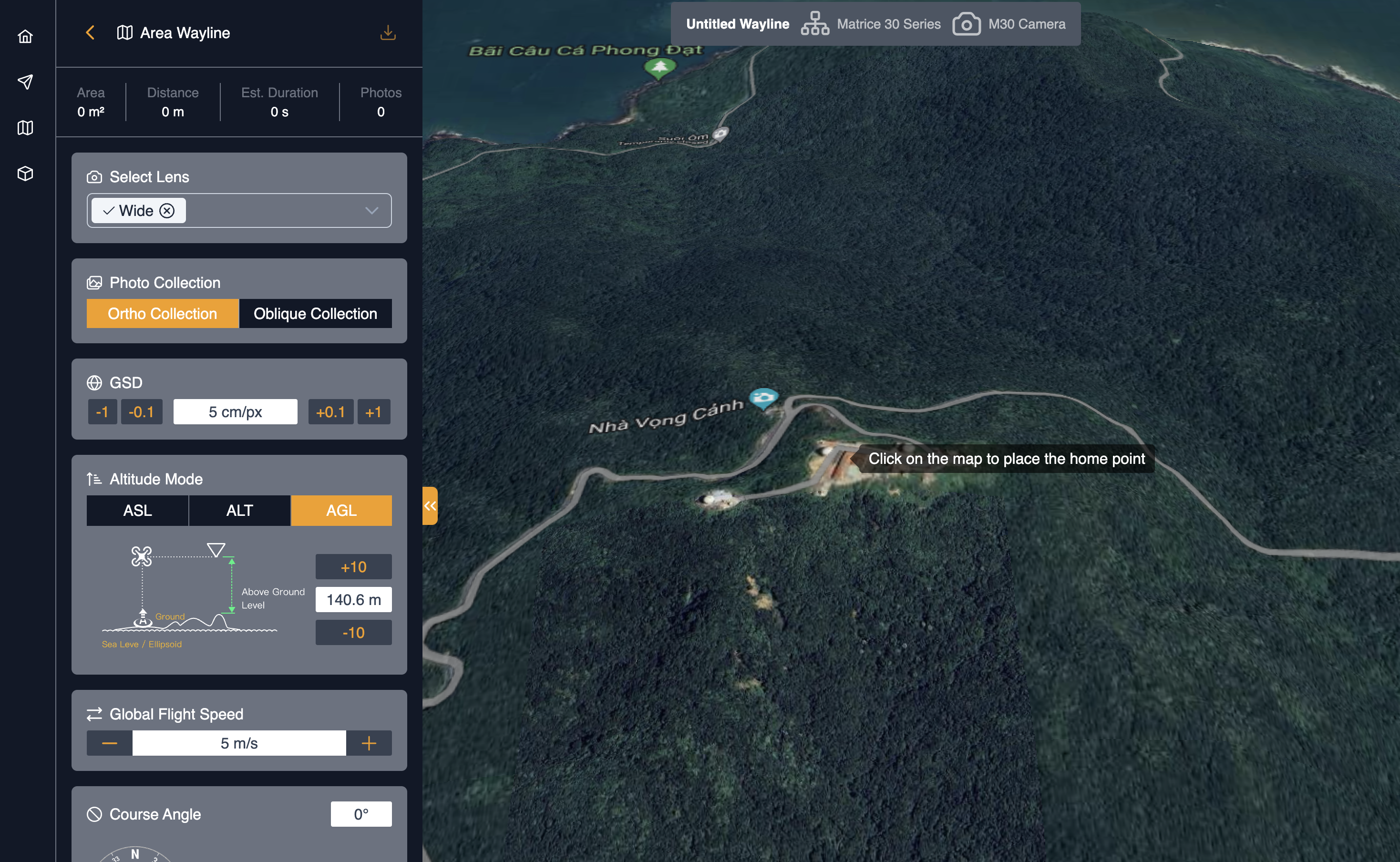
Users can click on the take-off point on the map and drag it to adjust its position.
Polygon and wayline generation
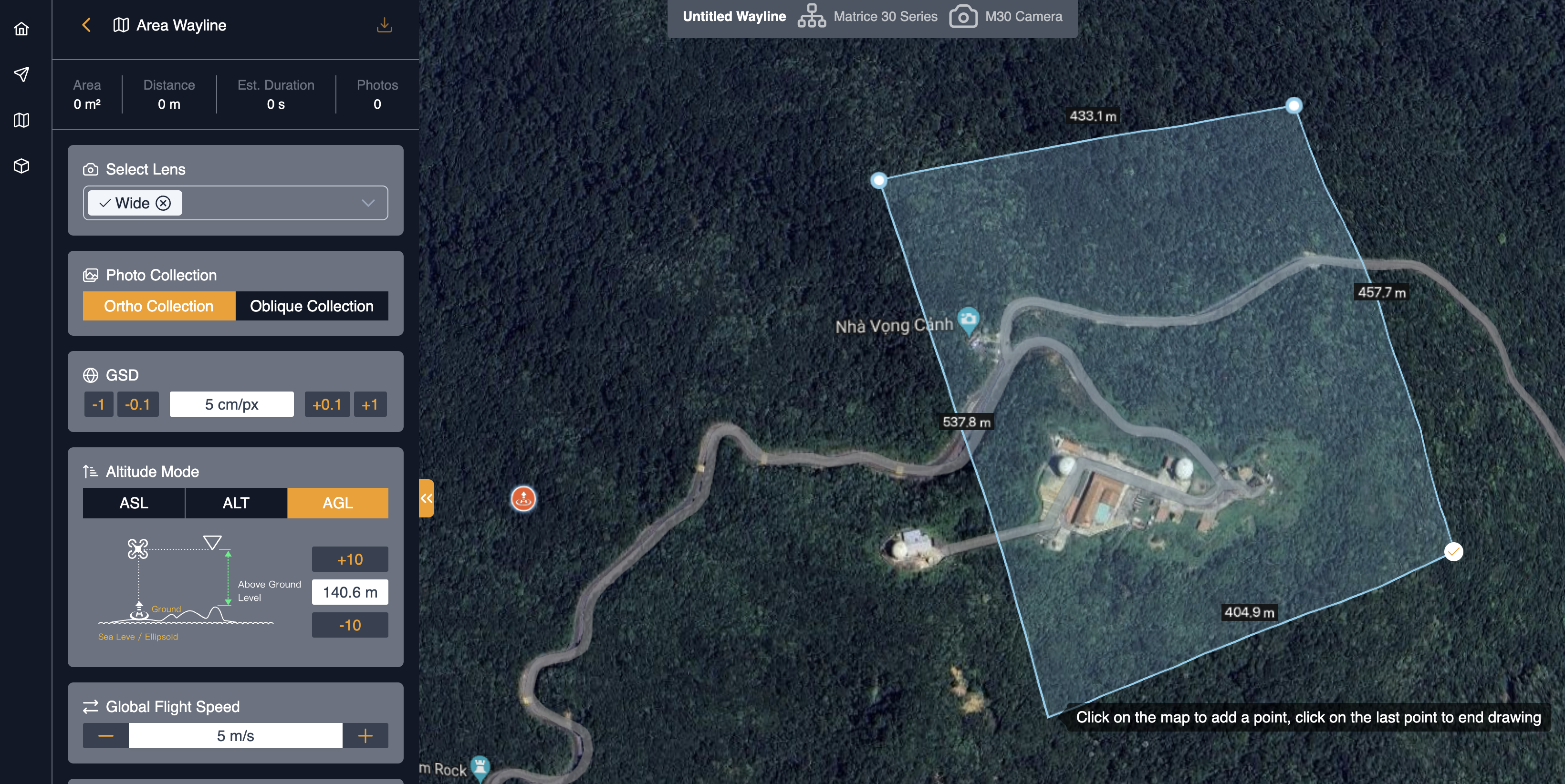
After clicking on the "tick(✓)", the grid line will be generated, see more in the following picture:
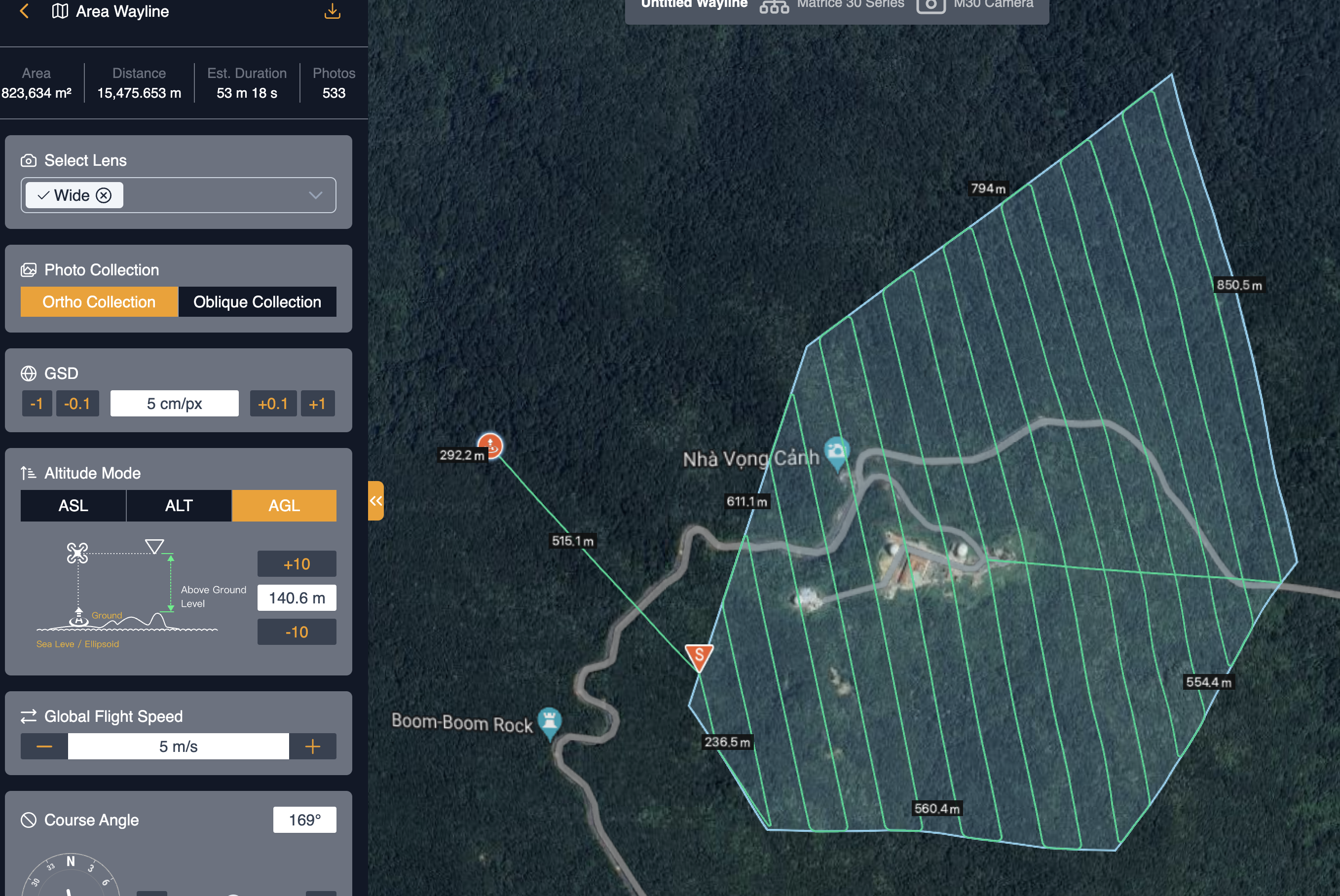
Flight settings
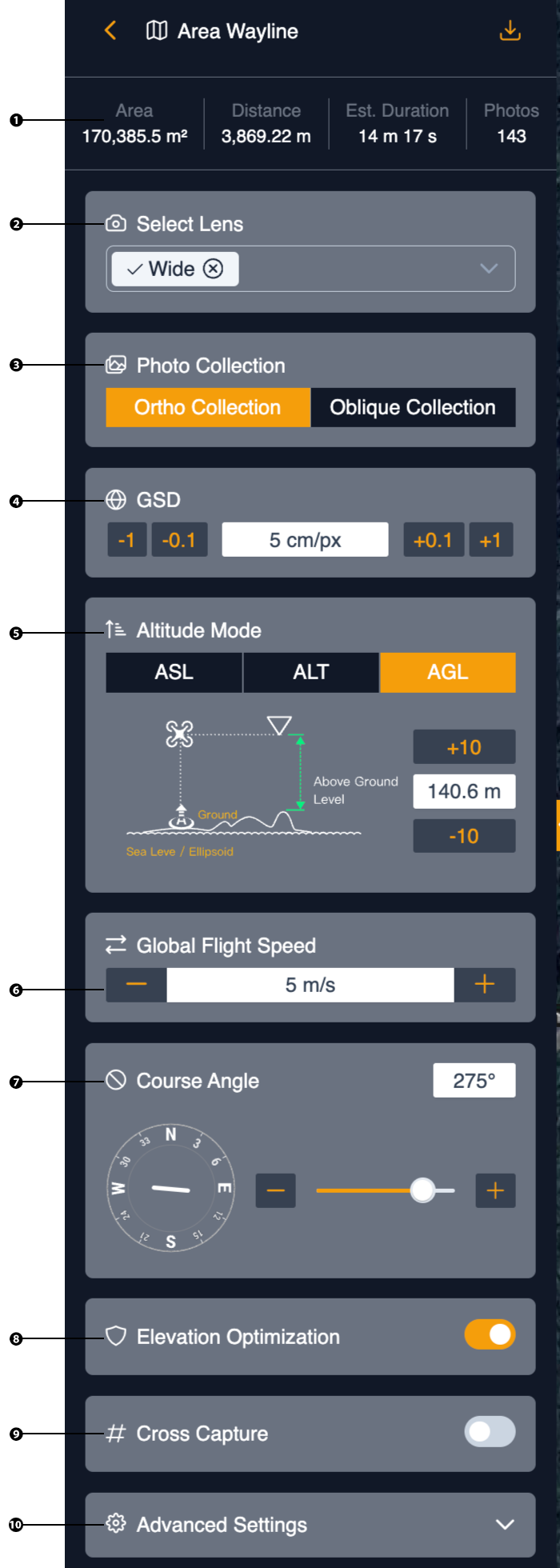
1. Basic Information
Displays the area route information, including the area size, flight route distance, estimated flight time, and number of photos that will be captured.
2. Select Lens
Defines the drone’s camera lenses that support DJI drones such as Matrice 30 Series, Matrice 3D Series, Mavic 3 Enterprise Series. The users can select multi camera lenses if needed.
Users can select lenses when the aircraft supports multiple lenses.
3. Photo Collection Method
The waylines can be used to one of the ortho photo and oblique capturing images, which are essential for 3D reconstructions. By using the oblique function, users can capture images from different angles and perspectives, providing a more comprehensive view of the surveyed area.
Users can choose from different collection methods.
4. GSD
Allows users to change the Ground sampling distance (GSD) in photogrammetry which is the distance between two consecutive pixel centers measured on the ground. The bigger the value of the image GSD, the lower the spatial resolution of the image and the less visible details.
5. Altitude Mode
Defines three types of altitude:
- Absolute Altitude: Waypoint altitude relative to sea level.
- Altitude Relative to Takeoff Point (ALT): Waypoint altitude relative to takeoff point altitude.
- Above Ground Level (AGL): Consistent altitude relative to model ground based on terrain follow file.
The data of the ground elevation can be sourced from the global elevation data and the user-imported models. Data source priority: 3D model elevation data > 2D model elevation data > global elevation data When there are more than one 3D model in the same mapping area, the highest altitude of the terrain surface will be regarded as the ground level.
6. Global Flight Speed
Specifies the aircraft flight speed within a range from Slow to Fast (default) for all waylines. The maximum speed is contingent upon the flight altitude.
7. Course Angle
Defines a slider that allows the user to change the aircraft heading angle. The heading of an aircraft is the compass direction in which the aircraft's nose is pointed. The course angle is automatically computed before drawing a new polyline based on the longest polygon edge.
8. Elevation Optimization
Allows users whether they want to enable the elevation optimization. If it’s enabled, the model output will have more details. Aircraft will fly to the center of the mapping area after completing the flight route and capture a series of tilt-angle photos to optimize its measurement of elevation. This option is only available for the Ortho Collection and will be disabled if the user enables the Custom Camera Angle option.
9. Cross Capture
This option is similar to the Double Grid Mission of Pix4DMapper that allows to generate a wayline perpendicular to the existing grid wayline. The Oblique collection does not support this option, as it employs the same solution for capturing photographs used in 3D generation.
9. Advanced Settings
- Takeoff Speed: The velocity at which a drone ascends from the ground during takeoff. This speed is crucial for ensuring a smooth and controlled liftoff, allowing the drone to stabilize quickly and begin its wayline. The takeoff speed can vary based on the drone model, its design, and the environmental conditions.
- Side/forward overlap rate: High overlap rates increase the overlap between adjacent photos captured by the aircraft and improve the mapping accuracy, but the mapping efficiency will be decreased. It is recommended to use the default overlap rates to balance the mapping quality and efficiency.
- Margin: Setting the margin to the mapping area can widen the flight area to avoid issues like blurriness at the edge of the model.
- Photo mode: Users can select between "Timed Interval Shot" and "Distance Interval Shot“.
- Custom Camera Angle: When enabled, the camera angle can be customized, but it may lead to failure in mapping.
- Route Start Point: Click to set the start waypoint of the flight route on the map.
Polygon Editing
Users have the ability to delete a vertex or manipulate the small breakpoint along the midpoint of a polygon edge to insert a new vertex. Additionally, users can adjust the size of the polygon by dragging its vertices, making it larger or smaller. The entire polygon can also be moved by dragging it to modify the overall position of the wayline.
After adjusting the entire polygon, the system will readjust the terrain elevations and flight altitudes for all waypoints. Validation is necessary if there are any irregularities during dragging. If issues arise, such as kinks in the polygon, the material color will change to red, indicating that a wayline has not been successfully generated.